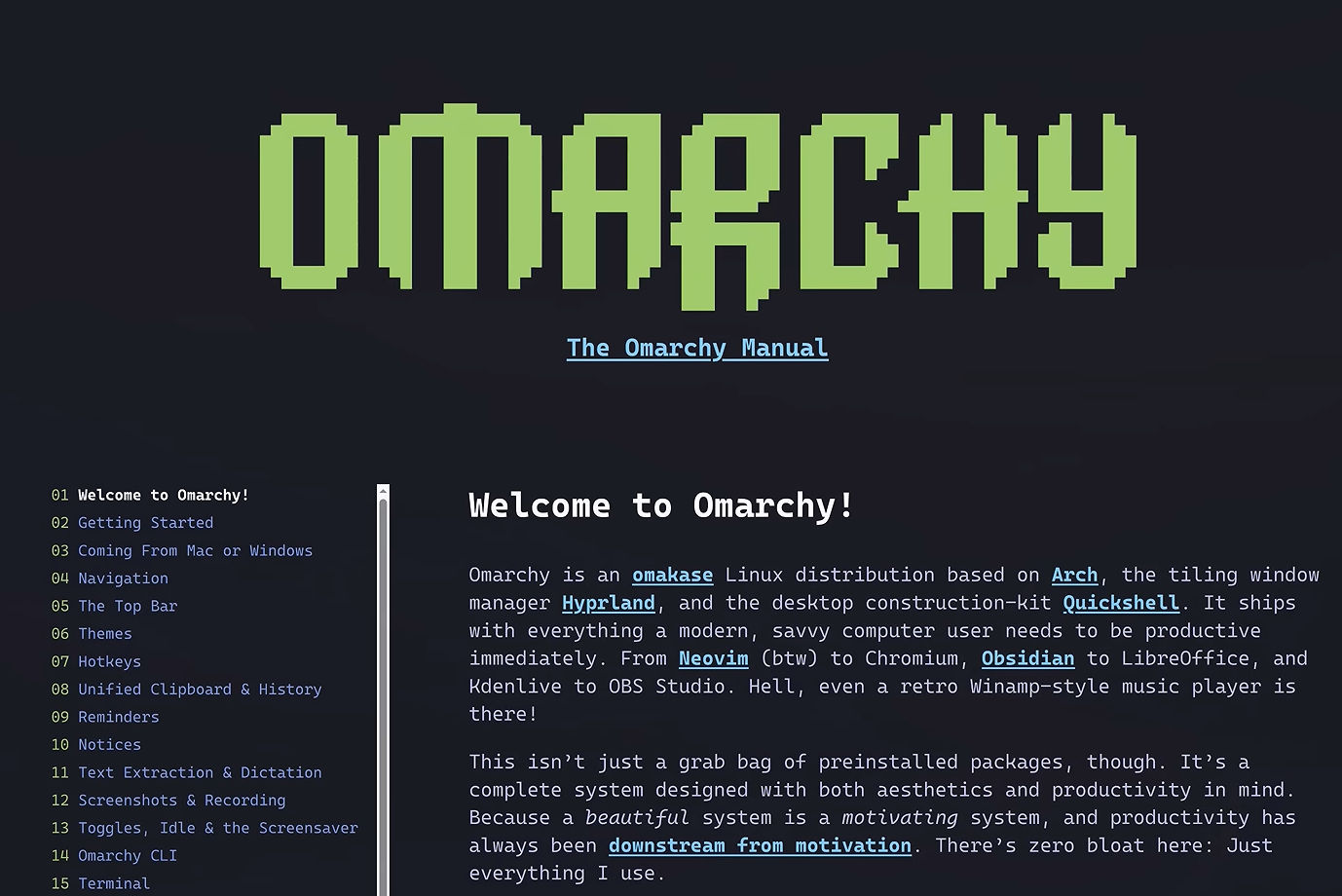
How to Install Omarchy: The AI-First Linux Desktop in 60 Seconds
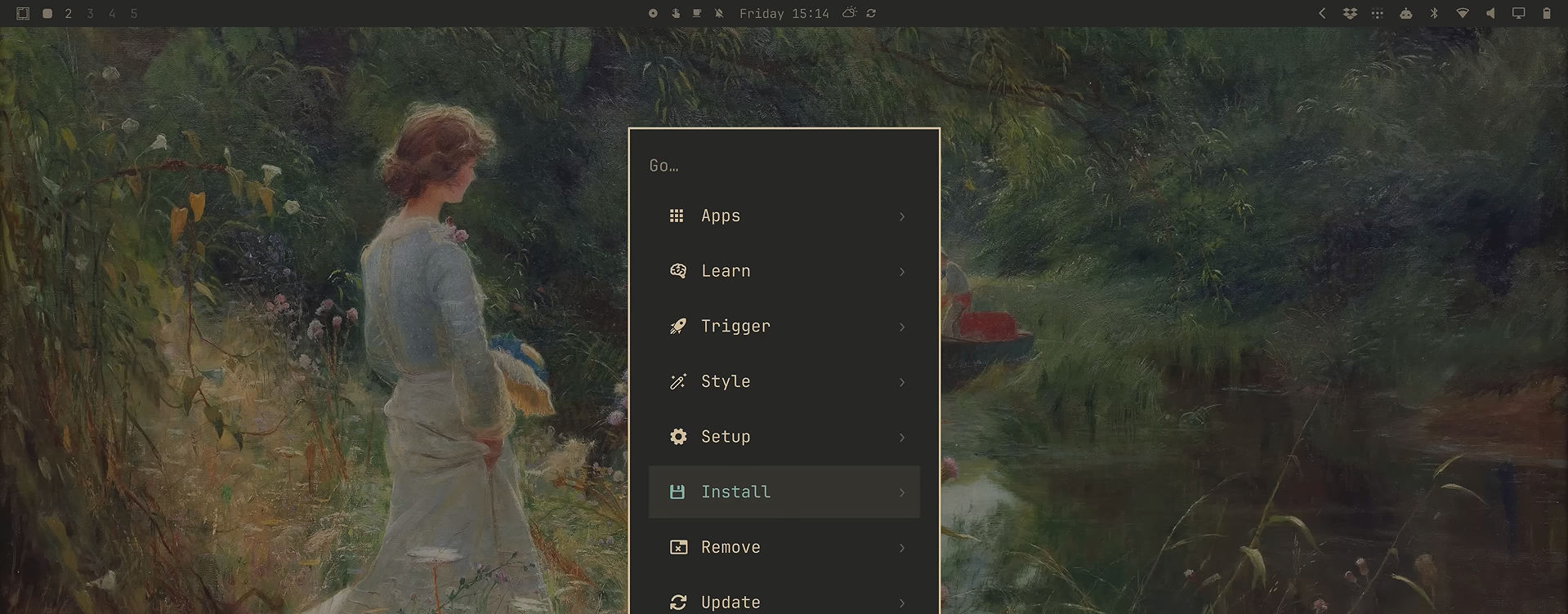
Omarchy is an opinionated Arch Linux distribution that combines the rolling-release power of Arch with the Hyprland tiling window manager and Quickshell desktop shell to deliver a fast, beautiful, and AI-integrated Linux experience. It installs in under two minutes, comes preconfigured with developer-friendly tools, and lets you customize everything from themes to plugins using built-in AI agents.
What Is Omarchy and Why Does It Matter?
Omarchy is a Linux distribution created by David Heinemeier Hansson (DHH), the co-founder of Basecamp and creator of Ruby on Rails. It is built on top of Arch Linux, using Hyprland as the window manager and Quickshell for the desktop interface, resulting in a system that feels responsive, modern, and highly customizable.
Unlike traditional Arch installations that require hours of manual configuration, Omarchy provides a complete, opinionated setup out of the box. This includes preinstalled applications, themes, fonts, and AI integration, allowing users to start working or gaming immediately without managing every detail themselves.
The distribution is designed for people who want to love their computer again. It targets both experienced Linux users who appreciate the control Arch offers and newcomers who want a polished system without the steep learning curve typically associated with Arch Linux. If you are new to Linux security concepts, start with our Linux Firewalls guide to understand how packet filtering works under the hood.
What Makes Omarchy Different from Other Linux Distros?
Omarchy stands out because it combines three key technologies into a cohesive experience. First, it uses Arch Linux as its base, providing access to the latest software through rolling updates. Second, it employs Hyprland, a dynamic tiling window manager that arranges windows automatically and supports keyboard-driven workflows. Third, it integrates Quickshell, which powers the desktop shell, panels, and widgets with fast, GPU-accelerated rendering.
Traditional Arch Linux installations provide only a minimal base system, requiring users to manually configure everything from graphics drivers to desktop environments. Omarchy removes this burden by providing a complete, aesthetically pleasing system that works immediately after installation.
The distribution also includes built-in AI agents that can help diagnose problems, create custom themes, and even build plugins. This AI-first approach makes Linux more accessible by reducing the need for deep technical knowledge when troubleshooting or customizing the system. For those interested in AI security implications, check out our article on how AI puts data security at risk.
How Fast Can You Actually Install Omarchy?
Omarchy can be installed in under two minutes on modern hardware. In testing, installation times ranged from one minute forty-seven seconds on a high-end desktop to around three minutes on older systems. The installer handles partitioning, package installation, and configuration automatically, requiring minimal user interaction.
To begin installation, download the latest Omarchy ISO and flash it to a USB drive. Boot from the USB, select your target drive, and the installer proceeds automatically. The process includes setting up the base Arch system, installing Hyprland and Quickshell, configuring themes, and preparing the AI integration layer.
# Flash Omarchy ISO to USB (replace /dev/sdX with your USB device)
sudo dd if=omarchy-quattro.iso of=/dev/sdX bs=4M status=progress
After installation, reboot into your new Omarchy system. The first boot presents a login screen where you create your user account and set your password.
What Hardware Does Omarchy Support?
Omarchy runs on a wide range of hardware, from modern laptops to older desktops. DHH uses a Dell XPS 16 and Framework laptops for daily driving, but the distribution works on virtually any x86-64 system. It automatically detects and configures graphics drivers, including support for NVIDIA GPUs with multiple graphics cards.
For best results, ensure your system has at least 8 GB of RAM and a modern CPU. Systems with 16 GB or more RAM will handle AI agents and multiple applications more comfortably. Omarchy also supports dual-boot configurations alongside Windows, allowing you to try Linux without fully committing.
# Check system specs after installation
fastfetch
The distribution includes tools for monitoring system resources, network status, and performance metrics directly from the desktop shell.
How Does the Tiling Window Manager Work?
Omarchy uses Hyprland, a dynamic tiling window manager that arranges windows automatically without requiring manual resizing or positioning. Windows are organized into workspaces, and you navigate between them using keyboard shortcuts centered around the Super key (Windows or Command key).
Basic navigation in Hyprland involves holding Super and pressing number keys to switch workspaces. For example, Super+1 moves to workspace one, Super+2 to workspace two, and so on. Within a workspace, you can move focus between windows using Super+H (left), Super+L (right), Super+J (down), and Super+K (up).
# Open the application launcher
Super+Space

# Open terminal
Super+Return

# Close window
Super+W

# Open system menu
Super+Escape
The tiling approach eliminates the need for window decorations like minimize, maximize, and close buttons. Once you learn the keyboard shortcuts, you can navigate your entire system without touching a mouse.
How Do You Customize Themes in Omarchy?
Omarchy includes a built-in theme switcher that lets you change the entire desktop appearance instantly. Access the theme menu by pressing Super+Shift+Control+Space, then select from dozens of preconfigured themes. Each theme changes colors, fonts, wallpapers, and widget styles across the entire system.
# Open theme menu
Super+Shift+Control+Space
Popular themes include Tokyo Night, Solitude, Osaka Jade, and Group Box. Switching themes takes less than a second because Quickshell handles all rendering in a single process. This makes experimenting with different looks fast and enjoyable.
Can You Use AI to Create Custom Themes?
Yes. Omarchy includes built-in AI agents that can generate custom themes based on your preferences. Open the agent menu with Super+Shift+Control+A, select your preferred AI provider (Claude, ChatGPT, or others), and describe the theme you want. The AI will create a complete theme package, including colors, fonts, and Quickshell configurations.
# Open AI agent menu
Super+Shift+Control+A
For example, you can ask the AI to create a Cyberpunk Neon theme or a ThreatLocker-inspired design. The agent will generate the necessary files and apply them automatically. This feature makes advanced customization accessible to users who may not know how to write configuration files manually.
How Do You Install and Use Plugins?
Omarchy supports a plugin ecosystem with over 500 community-created extensions. Plugins add functionality like pomodoro timers, music visualizers, system monitors, and custom widgets. You can install plugins through the plugin directory or create your own using AI assistance.
# Browse available plugins
# Visit https://omarchyplugins.com
To build a custom plugin, ask the AI agent to create one for you. For example, request a pomodoro timer plugin, and the agent will generate the Quickshell code and integrate it into your desktop. This approach lowers the barrier to entry for extending Omarchy's functionality.
How Does Gaming Work on Omarchy?
Omarchy includes Steam with Proton support for gaming on Linux. Proton is a compatibility layer that allows many Windows games to run on Linux without modification. Install Steam from the package manager, log in, and your existing game library becomes available.
# Install Steam (if not preinstalled)
sudo pacman -S steam
If a game crashes, Omarchy provides an AI-powered diagnostic tool. Click the crash notification, and the AI will analyze logs and suggest fixes, such as changing Proton versions or adjusting compatibility settings. This feature reduces the frustration often associated with gaming on Linux.
Can You Run Windows Applications on Omarchy?
Yes. Omarchy supports running Windows inside a Docker container using the dockur/windows project. This allows you to run Windows applications when needed without dual-booting or using heavy virtual machines. Access the Windows container from the application launcher by searching for "Windows."
# Run Windows in Docker (handled automatically by Omarchy)
# Search for "Windows" in the application launcher
The Windows container runs with allocated resources (typically 4 GB RAM) and provides a functional Windows environment for specific applications. This hybrid approach lets you enjoy Linux for daily tasks while retaining access to Windows-only software when necessary.
What Is Quickshell and Why Does It Matter?
Quickshell is the desktop shell technology that powers Omarchy's panels, widgets, and system UI. It renders everything in a single GPU-accelerated process, making theme switching and widget updates extremely fast. Quickshell also simplifies plugin development, allowing community members to create extensions more easily than with traditional desktop environments.
The shell displays system information like network status, CPU usage, and memory consumption in real time. It integrates with Hyprland to provide workspace indicators, application launchers, and system menus. This tight integration creates a cohesive user experience that feels responsive and modern.
How Do Update Channels Work in Omarchy?
Omarchy maintains its own package repository that mirrors Arch Linux but stays one month behind the bleeding edge. This approach provides stability while still delivering recent software updates. The distribution offers multiple update channels: Stable, RC (release candidate), Edge, and Dev.
# Check update channel settings
# Open application launcher and search for "Update"
Stable channel users receive updates that have been tested for compatibility. Edge and Dev channels provide earlier access to new features but may include occasional bugs. This channel system lets users choose their preferred balance between stability and new features.
Is Omarchy Suitable for Beginners?
Omarchy is designed to be accessible to users who want a powerful Linux system without the complexity of traditional Arch installations. The preconfigured setup, AI assistance, and extensive documentation make it easier for newcomers to get started. However, the tiling window manager and keyboard-driven workflow still require a learning curve.
New users should expect to spend a few days learning keyboard shortcuts and Hyprland conventions. The built-in keybinding reference (accessible via the application launcher) helps accelerate this process. Once familiar with the system, users often find the keyboard-driven approach more efficient than traditional mouse-based workflows.
What Applications Come Preinstalled?
Omarchy includes a curated set of applications for development, productivity, and entertainment. The Ghostty terminal emulator provides a modern, fast terminal experience. CLIamp offers a Winamp-style music player for the command line. The system also includes web browsers, text editors, and system utilities preconfigured and ready to use.
# Open Ghostty terminal
Super+Return

# Launch CLIamp music player
# Search for "CLIamp" in application launcher
Additional applications can be installed through the Pacman package manager or the Omarchy plugin directory. The distribution's opinionated approach means most users will find everything they need out of the box.
How Do You Troubleshoot Problems with AI?
Omarchy integrates AI agents directly into the system for troubleshooting. When an application crashes, click the diagnostic notification to have the AI analyze logs and suggest fixes. You can also open the AI agent menu and ask questions about system configuration, plugin development, or theme customization.
# Open AI agent for troubleshooting
Super+Shift+Control+A
The AI can help diagnose driver issues, resolve package conflicts, and guide you through configuration changes. This integration significantly reduces the time spent searching forums or documentation for solutions.
Can You Dual-Boot Omarchy with Windows?
Yes. Omarchy supports dual-boot configurations alongside Windows. During installation, the installer can detect existing Windows partitions and set up a boot menu that lets you choose between operating systems. This approach allows you to try Linux without abandoning Windows entirely.
# Check boot configuration after installation
efibootmgr -v
Dual-booting is ideal for users who need specific Windows applications but want to explore Linux for daily tasks. As you become more comfortable with Omarchy, you may find yourself using Windows less frequently.
Is Omarchy Considered "True Arch Linux"?
The Arch Linux community has debated whether Omarchy qualifies as "true Arch" because it provides a preconfigured system rather than requiring manual setup. Traditional Arch users value the DIY approach and the knowledge gained from configuring every component. Omarchy removes this requirement, leading some purists to argue it does not earn the "I use Arch, btw" badge.
However, Omarchy is built on Arch Linux, uses Pacman for package management, and follows Arch principles like rolling releases and minimalism (at the core level). The distribution simply adds a layer of opinionated configuration on top. For most users, the practical benefits of a working system outweigh philosophical debates about purity.
What Are the System Requirements for Omarchy?
Omarchy requires a 64-bit x86 processor, at least 4 GB of RAM (8 GB recommended), and 20 GB of free disk space. Systems with NVIDIA GPUs should have recent drivers for optimal performance. The distribution works on both UEFI and legacy BIOS systems, though UEFI is recommended for modern hardware.
# Check system architecture
uname -m

# Verify RAM
free -h
For AI features and plugin development, 16 GB or more RAM provides a smoother experience. The distribution scales well from older laptops to high-end workstations.
Where Can You Find Omarchy Resources and Documentation?
Official Omarchy resources include the project website, GitHub repository, and manual. The plugin directory hosts over 500 community-created extensions. Additional documentation covers installation, configuration, and troubleshooting.
- Omarchy Official Website
- Omarchy Manual
- Omarchy GitHub Repository
- Omarchy Plugin Directory
- Hyprland Documentation
These resources provide comprehensive guidance for getting started and advanced customization.
Should You Switch to Omarchy?
Omarchy represents a compelling option for users who want a fast, beautiful, and customizable Linux system without the complexity of traditional Arch installations. Its AI integration, extensive plugin ecosystem, and polished desktop experience make it accessible to both newcomers and experienced users.
For those curious about Linux but intimidated by setup complexity, Omarchy offers a gentle entry point. Dual-booting allows you to test the system without fully committing. As AI tools continue to improve, the barriers to Linux adoption will only decrease.
If you want to explore more Linux security topics, check out our beginner's guide to port scanning with Nmap .
Do you want to secure your company by experts? Than you should look into SySecurity .