
How to Set Up Parental Controls on TikTok, Instagram, and YouTube
To set up parental controls across TikTok, Instagram, and YouTube, you must link your parent account to your child's profile through each platform's native family safety suite: Family Pairing on TikTok, Family Center Supervision on Instagram, and Google Family Link / Restricted Mode on YouTube. Once linked, these controls allow you to enforce daily screen time limits, block direct messaging from strangers, filter age-inappropriate content, and restrict privacy settings across all three services simultaneously.
How to Enable TikTok Family Pairing
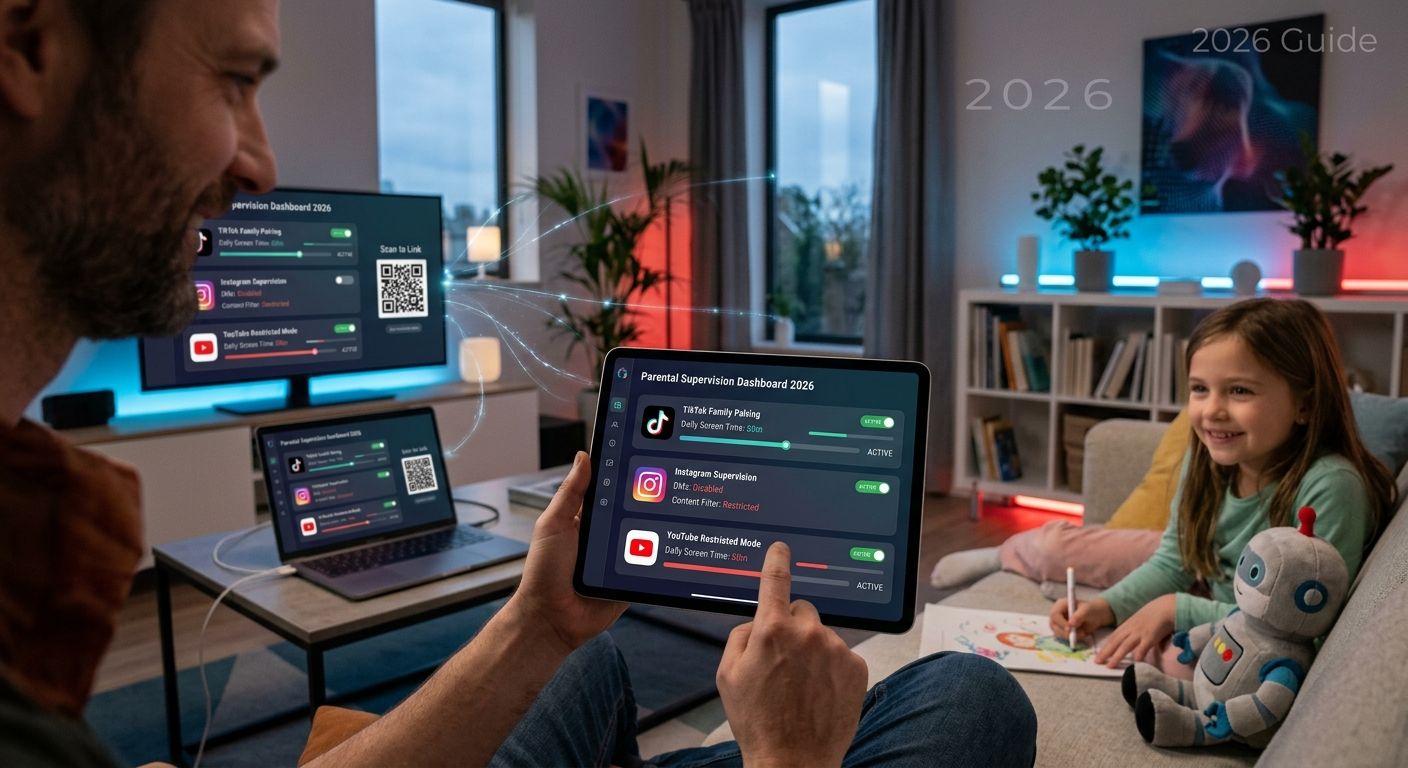
TikTok's Family Pairing links a parent's account directly to a teen's profile to control privacy, screen time, and content discovery remotely.
- Open TikTok on both devices and navigate to Profile > Settings and Privacy > Family Pairing.
- Select Parent on your device and Teen on your child's device.
- Scan the generated QR code on your child's phone to link the accounts.
How to Check It Worked: Once the accounts are successfully linked, you can open the Family Pairing menu on your own phone at any time. From your personal dashboard, you can instantly see if restrictions are active, adjust daily screen time limits, and ensure direct messages are restricted to "Friends Only" or completely disabled. You do not need access to your teen's phone to make future updates.
For additional privacy strategies, explore our guide on social media privacy for teens.
How to Configure Instagram Parental Supervision
Instagram Supervision operates through Meta's Family Center, allowing parents to oversee time spent, view reported accounts, and restrict who can message their teen.
- Open Instagram on your device and go to Settings > Account Center > Family Center.
- Tap Create Invitation and send the unique link to your child via text or email.
- Have your child open the link on their device and tap Accept Supervision.
How to Check It Worked: Once your teen accepts the invitation, the Family Center dashboard will update immediately on your device. You can now track their daily time spent on the app, verify that their account is set to private, and ensure their messaging limits are active directly from your own Instagram settings.
To learn more about securing meta ecosystem apps, see our article on managing family digital footprints.
How to Lock Down YouTube & YouTube Kids
YouTube provides two main management paths: Restricted Mode on individual devices and full supervision via Google Family Link.
- Download the Google Family Link app on your device.
- Select your child's Google Account and tap Controls > Content restrictions > YouTube.
- Choose the appropriate content tier: Explore (9+), Explore More (13+), or Most of YouTube.
- Toggle Restricted Mode to ON to filter out potentially mature content.
How to Check It Worked: After setting the content tier, changes will automatically sync to any device where your child is logged into their Google account. Open YouTube on their phone or tablet to verify that Restricted Mode is locked on and search history cannot be deleted or bypassed.
FAQ: Managing Kids' Social Media Controls
How do I prevent my child from bypassing parental controls?
Ensure your child's device uses a separate system profile without administrative or developer privileges. On iOS, lock "Screen Time & Content Restrictions" behind a passcode your child does not know. On Android, use Google Family Link to block side-loading of unauthorized APKs and restrict access to system settings.
Why does my child's account fail to link during setup?
Account linking usually fails if the birthdate on your child's account is set to 18 years or older. Most supervision features (TikTok Family Pairing, Meta Supervision, Google Family Link) require the secondary account to be registered as a minor (under 18). Adjust the birthdate in the account settings or create a supervised child account.
Cited Sources
- TikTok Safety Center: Family Pairing Overview
- Meta Family Center: Instagram Supervision Guide
- Google Safety Center: YouTube Supervised Experiences
Looking to secure your home network and protect all connected devices at the router level and more? Book a free family cybersecurity consultation with our team today.