

What Is Network Mapping and How It Works
Introduction
Network mapping is an early stage in network analysis, cybersecurity, and penetration testing activities. At this stage, the main objective is not to exploit vulnerabilities, but to understand the structure of the network. We want to know what devices exist, which hosts are active, and how the network is organized.
The information gathered during network mapping becomes the foundation for later stages such as port scanning and vulnerability analysis. Without proper network mapping, scanning activities become inefficient because we do not know which targets are actually alive.
Network Mapping Concepts
Every network consists of multiple devices such as routers, computers, servers, printers, and IoT devices. Each of these devices is assigned an IP address. However, not all IP addresses within a network range are actively used.
Network mapping focuses on identifying which IP addresses are active and have real devices behind them. This process helps reduce noise and allows us to focus only on relevant targets.
Before we dive deeper into using Nmap, here are basic concepts that we have to understand:
1. What Is Nmap
Nmap, short for Network Mapper, is a powerful tool used to discover and analyze devices on a computer network. It is widely used by network administrators, cybersecurity professionals, and penetration testers to understand how a network is structured and how systems within that network are exposed.
At its core, Nmap helps answer simple but important questions:
Which devices are connected to a network? Which services are running on those devices? And which parts of the system are accessible from the network?
2. The Purpose of Nmap
The main purpose of Nmap is network discovery and security assessment. By sending specially crafted packets to a target system and analyzing the responses, Nmap can determine whether a system is online and how it is configured from a network perspective.
3. How Nmap Works
Nmap works by sending packets to a target and observing how the target responds. Different types of responses provide different information. For example, if a system responds to a request on a specific port, Nmap can determine that the port is open and that a service is listening on it.
4. DNS Resolution in the Context of Nmap
DNS resolution is the process of translating an IP address into a hostname (reverse DNS lookup), or translating a hostname into an IP address.
By default, Nmap attempts to perform reverse DNS lookups for each IP it scans. This means Nmap asks a DNS server whether the IP address has an associated hostname.
This process can slow down scanning because:
- Many IP addresses do not have hostnames
- DNS servers may respond slowly or not at all
For this reason, DNS resolution is often disabled during network mapping.
Basic Nmap Commands
Host Discovery Using Ping Scan
The most basic and commonly used network mapping technique in Nmap is host discovery using a ping scan.
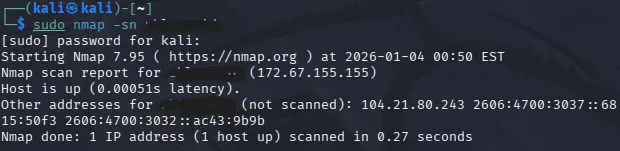
sudo nmap -sn ipaddr/domainname
The -sn option means scan without port scanning. Nmap will only check whether a host is alive, not which ports are open. On a local network, Nmap uses ICMP echo requests and ARP requests to detect active hosts.
The use of sudo is critical because administrative privileges allow Nmap to send ARP packets. Without these privileges, many hosts, especially on local networks, may not be detected.
Disabling DNS Resolution
By default, Nmap attempts to perform reverse DNS lookups for each IP address it scans. While this can provide useful information, it significantly slows down the scan.
sudo nmap -n -sn ipaddr/domainname
The -n option disables DNS resolution, resulting in faster and cleaner scan output.
Controlling Scan Speed
Nmap provides timing templates that control how fast and aggressive a scan is performed. These templates directly affect scan speed, detection risk, and accuracy.
sudo nmap -T4 -sn ipaddr/domainname
-T0 is known as Paranoid mode. It sends packets extremely slowly with long delays. This mode is designed to evade very sensitive intrusion detection systems but is rarely practical today.
-T1 is called Sneaky mode. It is slightly faster than paranoid mode but still very slow. It is used when minimizing detection is a priority.
-T2 is known as Polite mode. It slows the scan to reduce network load and avoid disrupting the target system. This is suitable for sensitive internal networks.
-T3 is the default mode. It balances speed and reliability and is used when no timing template is explicitly specified.
-T4 is referred to as Aggressive mode. It significantly speeds up scanning and is commonly used in labs, internal networks, or authorized penetration testing. Detection risk is higher than T3.
-T5 is called Insane mode. It assumes a very fast and reliable network and sends packets extremely aggressively. This can lead to inaccurate results and is very easy to detect. It is rarely recommended.
In practice, -T4 is the most commonly used timing template for network mapping and port scanning.
Filtering Output and Saving Live Hosts
Once host discovery is complete, we often want to save only the active hosts for further analysis.
sudo nmap -oG - -sn ipaddr/domainname | grep Up > live_hosts.txt
The -oG option tells Nmap to use grepable output format, which is designed to be easily processed by tools like grep, awk, or cut.
The dash (-) after -oG means that the output is sent to standard output (stdout) instead of being written directly to a file.
The pipe symbol (|) sends the output of the Nmap command to the next command.
The command grep Up filters the output and keeps only the lines that contain the word “Up”, which indicates that the host is alive.
The > symbol redirects the filtered output into a file named live_hosts.txt.
This file can later be used as input for port scanning, allowing scans to focus only on confirmed active hosts.