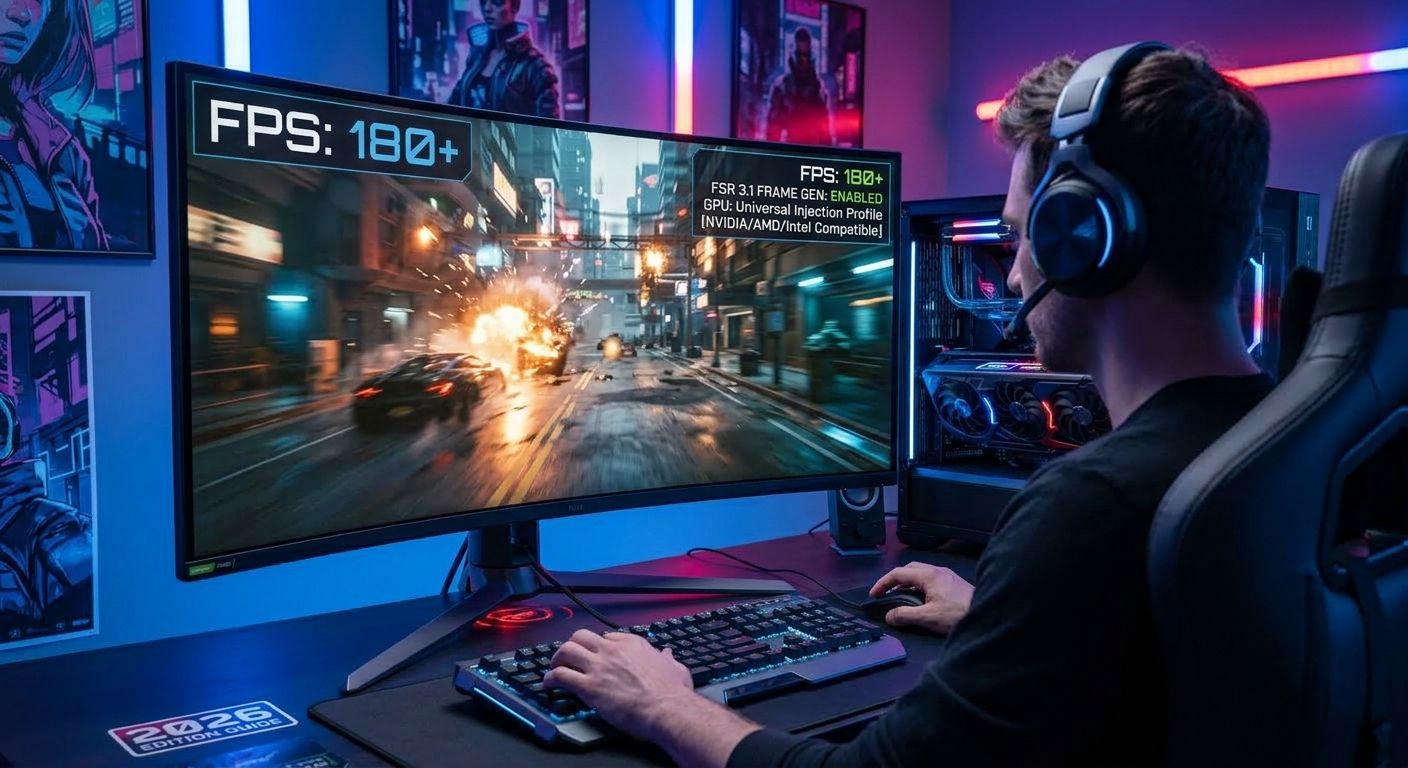
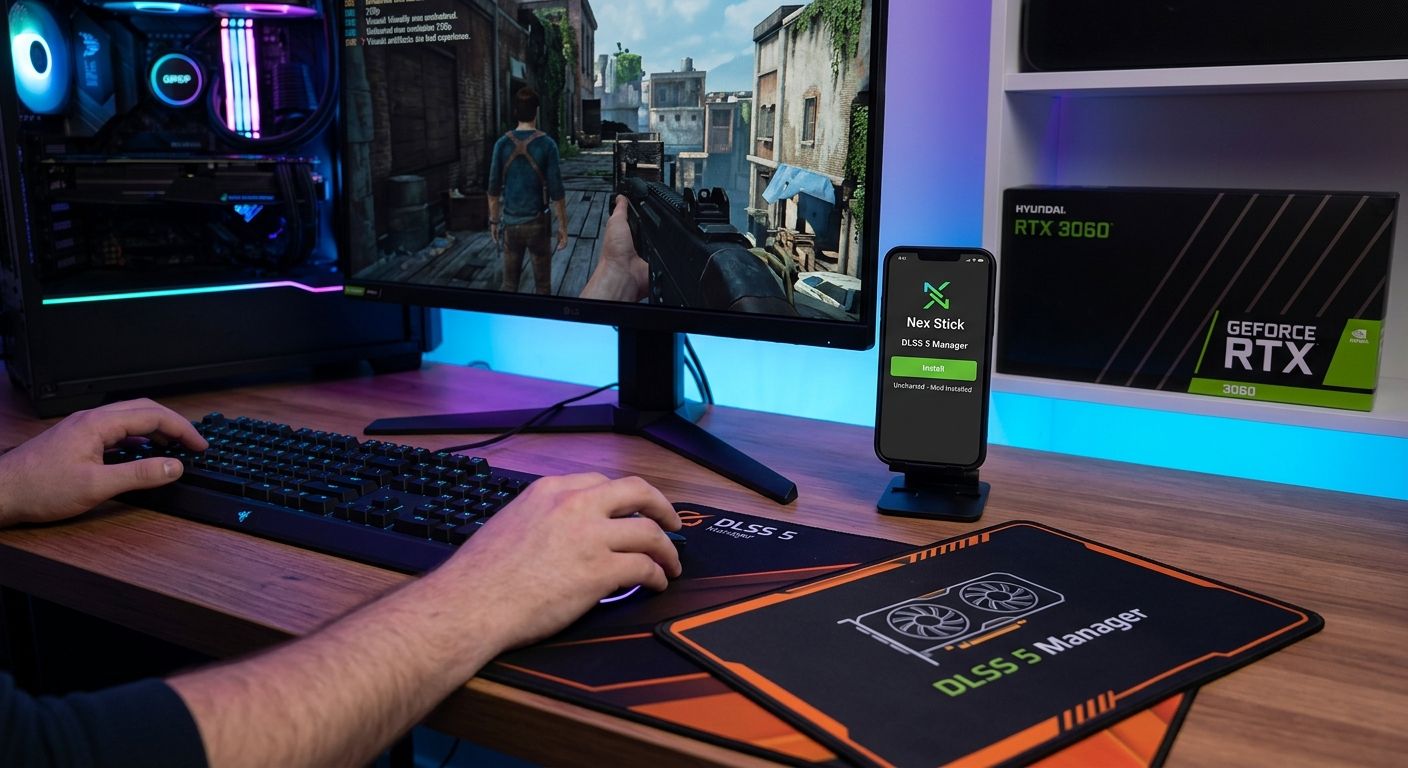
Installing a cutting-edge performance mod across your entire PC gaming library no longer requires manual file swapping or editing config files. If you are looking for the absolute easiest way to enable advanced DLSS 5 features on any NVIDIA RTX graphics card, a new utility simplifies the process entirely. While future RTX 50 series or current 40 series cards offer the best overhead for frame generation, this method brings the technology to older generations with unprecedented ease.
What is DLSS 5 Manager by Nex Stick?
The DLSS 5 Manager by Nex Stick is a lightweight utility designed to automate the installation and management of DLSS 5 injection mods. Instead of manually downloading DLL files and placing them in specific game directories, this tool uses a one-click interface to scan your library and apply the necessary modifications.
It is important to manage performance expectations based on your hardware. For example, when testing this mod on an RTX 3060, the early experience was sub-optimal due to high processing overhead. However, the software makes applying the mod incredibly straightforward, enabling all RTX users to test the feature instantly.
// Typical user path before this manager:
1. Download specific DLL version 'nvngx_dlss.dll'
2. Locate game install directory (e.g., C:\Program Files (x86)\Steam\...)
3. Backup original DLL
4. Paste new DLL
5. (Optional) Install RenuDX or ReShade wrapper

// Path with DLSS 5 Manager:
1. Click 'Install'
How to Install the DLSS 5 Manager Utility
The setup process is quick and uses a standard installation wizard.
Step 1: Download the Software
First, you must download the official DLSS 5 Manager setup from the Nex Stick repository. Choose your preferred download location and save the setup executable.
Step 2: Run the Installation
Launch the downloaded setup file. Note that depending on your security settings, you might encounter a prompt regarding an "unknown publisher." This is standard for independent utilities and does not indicate malware. Click Run to proceed, then follow the easy Next > Next > Finish prompts to complete the installation.
Step 3: Scan Your Library
Once finished, the application will open automatically, and a shortcut will be added to your desktop. Upon launch, the software performs an automatic scan of your system to locate supported game installations.
Activating DLSS 5 in Your Games
Once your games are indexed, applying the mod requires a single click.
Step 1: Select a Game
Navigate the list of games detected by the manager. For this example, we will look at Uncharted. Note: The software may detect installed online titles; it is highly recommended to skip installing mods for online games to avoid anti-cheat bans. Only apply this to single-player experiences.
Step 2: One-Click Installation
If the mod was previously uninstalled, simply click the Install button. The app will automatically acquire the necessary files and complete the injection process. If an installation was left incomplete, the software automatically self-corrects the setup. Once the process is complete, you are ready to launch the game.
Managing Expectations and Bugs
The application is intentionally simple, though advanced settings are available. Be aware that the utility may receive frequent updates to address known bugs and improve compatibility. Updates often address stability issues in the mod injection pipeline.
Frequently Asked Questions
Why does my performance drop when activating the mod on an RTX 30 series card?
Early iterations of this DLSS 5 injection mod carry significant performance overhead. On mid-range hardware like an RTX 3060, this overhead can drastically reduce framerates (in testing, dropping from roughly 140 FPS to 20 FPS). This is common for initial versions of experimental scaling tech; future optimizations may improve performance on 30 series GPUs.
Can I fix the scaling or upscaling resolution issues?
Currently, standard game upscaling options (like setting DLSS to Performance mode) may not apply correctly when the injection mod is active. The mod might render at the native display resolution (e.g., native 1440p) regardless of settings. For performance issues on lower-tier cards, manually reducing your native resolution—such as downscaling to 720p—is currently the primary workaround to keep frames stable.
Internal Resources and Further Reading
For more details on maximizing graphics performance and comparing generation overhead, see our guide on DLSS Generation Gaps or explore the latest RTX 40 Series Benchmarks. If you are looking for assistance with optimization, you can check out our Free System Check Utility.
If this guide helped you easily mod your game library, please consider sharing this article or supporting the site to help us create more guides like this.