
How to Stop Ransomware with 3-2-1 Backups
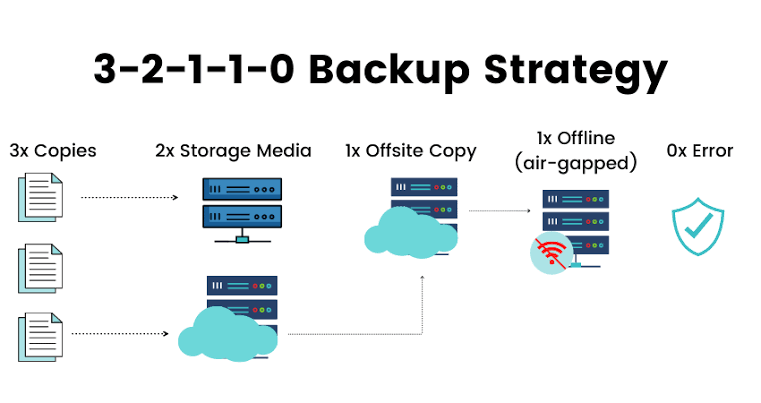
A strong ransomware backup strategy keeps multiple copies of your data, separates them across different storage types, and makes at least one copy impossible for an attacker to modify. The modern 3-2-1-1-0 backup rule improves the classic 3-2-1 model by adding an immutable or offline copy and requiring verified, error-free restore tests.
If ransomware encrypts a workstation, file server, NAS, or domain-connected backup repository, the goal is not simply to have "a backup." The goal is to have a copy the attacker could not reach, alter, encrypt, or delete.
What Is the 3-2-1-1-0 Backup Rule?
The traditional 3-2-1 backup strategy says you should maintain three copies of your data, store them on two different types of media, and keep one copy offsite.
The modern 3-2-1-1-0 model adds two important requirements:
- 3 copies of your important data.
- 2 different storage media or platforms.
- 1 copy stored offsite.
- 1 copy kept immutable or air-gapped.
- 0 errors during tested restores.
A practical setup could include the production copy on your computer or server, a local backup on a NAS or external storage device, and an offsite copy in cloud object storage. The additional immutable copy should be protected against normal deletion or modification.
This matters because ransomware operations do not always stop after encrypting the first machine. Attackers may also search for accessible backup shares, storage consoles, administrative credentials, and recovery systems before triggering encryption.
Why Is the Traditional 3-2-1 Rule No Longer Enough?
The original 3-2-1 rule is still a useful foundation, but modern environments require an extra layer of protection.
If your computer, NAS, and cloud backup are all reachable using the same administrator account, an attacker who compromises that account may be able to reach all three copies. In that situation, having multiple copies does not automatically mean the copies are independent.
This is why the extra "1" in 3-2-1-1-0 is important. It represents a copy that is immutable, physically disconnected, logically isolated, or otherwise protected from routine modification.
CISA recommends maintaining offline, encrypted backups of critical data and testing those backups regularly as part of ransomware preparation. See the official CISA StopRansomware guidance for broader defensive recommendations.
Why Does Immutable Storage Help Against Ransomware?
Immutable storage prevents protected backup data from being changed or deleted during a defined retention period.
One example is Amazon S3 Object Lock, which uses a Write Once, Read Many (WORM) model. AWS documents that Object Lock can prevent protected object versions from being overwritten or deleted for a fixed amount of time or indefinitely.
This gives defenders a recovery copy that is harder to destroy even if another system in the environment is compromised.
AWS supports two Object Lock retention modes:
- Governance mode, where specially authorized users can bypass retention.
- Compliance mode, where a protected object version cannot normally be overwritten or deleted before its retention period expires.
Read the official AWS S3 Object Lock documentation before enabling it in production because retention settings directly affect how objects can be deleted and managed.
Can Attackers Really Target Backup Systems?
Yes. Backup infrastructure should be treated as security-critical infrastructure rather than ordinary storage.
A useful historical example is CVE-2023-27532, a vulnerability affecting Veeam Backup & Replication. The issue demonstrated why backup servers and their stored credentials can become valuable targets during an intrusion.
You can review the vulnerability entry in the NIST National Vulnerability Database.
The lesson is broader than one product: backup servers should be patched, monitored, segmented, and protected with accounts that are not reused across ordinary endpoints.
If an attacker can move from an infected workstation directly into your backup infrastructure, your recovery plan may disappear at exactly the moment you need it.
How Should You Separate Your Backup Copies?
A useful home or small-business design might look like this:
- Production copy — the live files on the workstation or server.
- Local recovery copy — a NAS, external disk, or backup appliance for fast restores.
- Offsite copy — cloud or physically separate storage.
- Immutable/offline copy — storage with Object Lock, WORM protection, or a disk that is disconnected after the backup completes.
The important part is independence.
Do not make every backup depend on the same credentials, the same network path, and the same administrator account. A mistake or compromise involving one security boundary should not automatically expose every recovery copy.
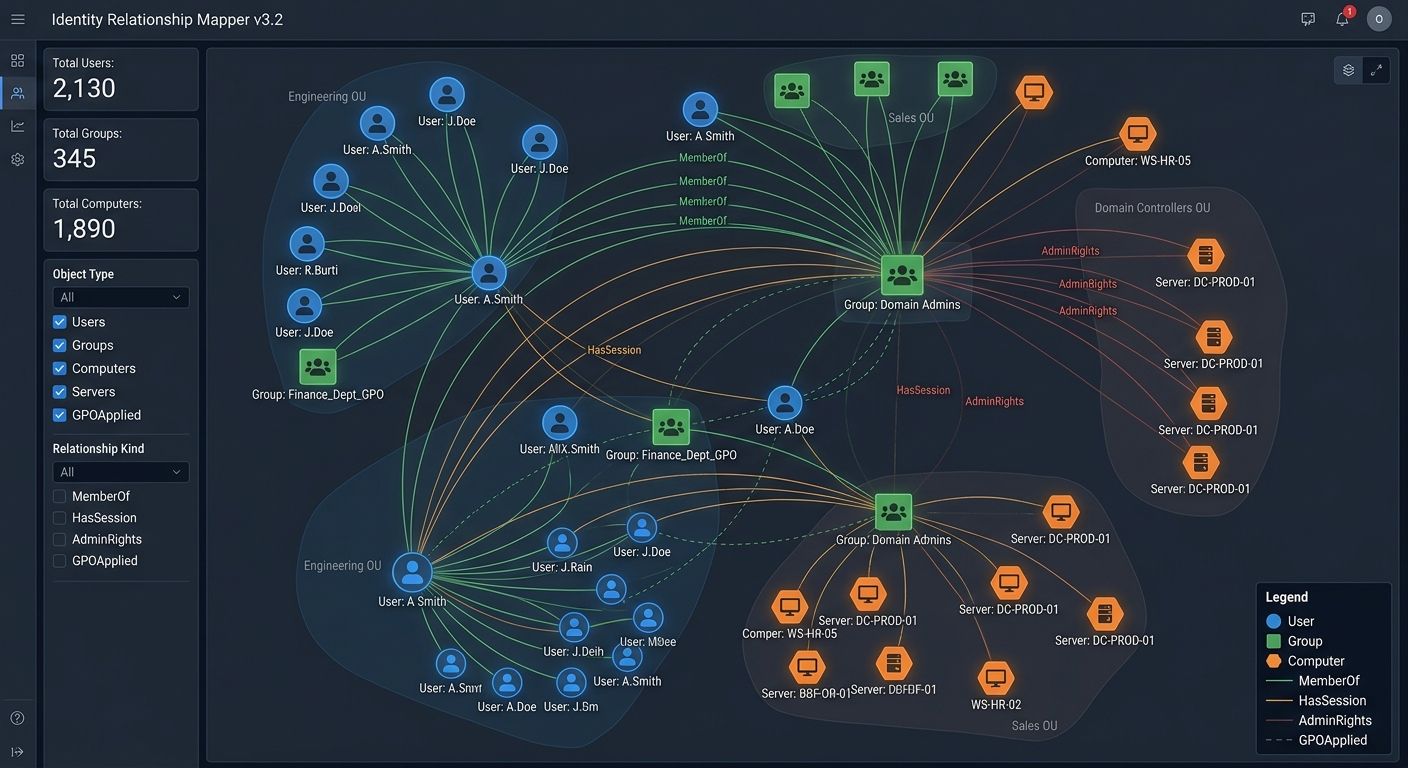
For larger Windows networks, backup isolation should be combined with Active Directory hardening. Read our guide on Active Directory security hardening for additional defensive controls.
How Do You Check Recent Backups with PowerShell?
Windows administrators can use PowerShell to inspect backup folders and confirm that recent backup sets exist.
For example:
Get-ChildItem -Path "E:\Backup\MyPC\Files" |
Sort-Object LastWriteTime -Descending |
Select-Object -First 3
Example output:
Mode                 LastWriteTime         Length Name
----                 -------------         ------ ----
d-----          9/5/2026   1:12 AM                2026-09-05
d-----          9/4/2026  11:45 PM                2026-09-04
d-----          9/3/2026  10:30 PM                2026-09-03
This confirms that backup directories exist, but it does not prove that their contents can be restored successfully.
That difference is important. A backup job can report success while individual files, permissions, application data, or recovery images are still unusable.
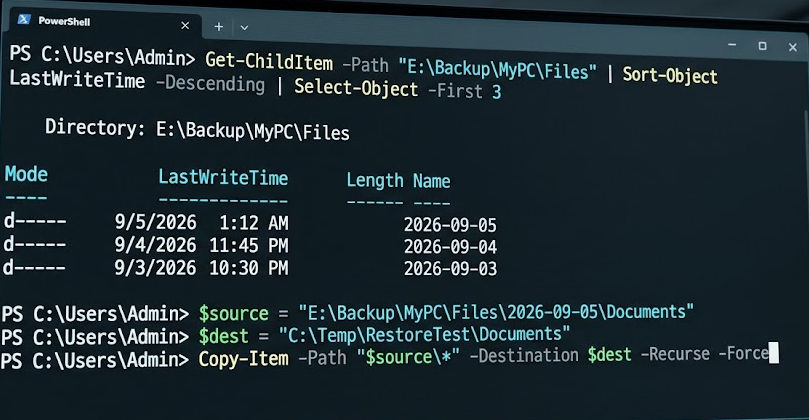
Screenshot caption: Verifying the most recent local backup sets with PowerShell.
How Do You Perform a Real Restore Test?
The best way to validate a backup is to restore data into a separate test location.
Create a staging directory rather than overwriting the live files:
$source = "E:\Backup\MyPC\Files\2026-09-05\Documents"
$dest   = "C:\Temp\RestoreTest\Documents"

New-Item -ItemType Directory -Force -Path $dest | Out-Null
Copy-Item -Path "$source\*" -Destination $dest -Recurse -Force
After the copy completes, inspect the restored directory:
Get-ChildItem -Path "C:\Temp\RestoreTest\Documents" -Recurse |
Select-Object -First 10 FullName, Length
Example output:
FullName                                              Length
--------                                              ------
C:\Temp\RestoreTest\Documents\Budget.xlsx             18422
C:\Temp\RestoreTest\Documents\Notes.txt                2431
C:\Temp\RestoreTest\Documents\Projects\Report.docx    82117
Open a few restored files and verify that the data is readable. For business systems, restore testing should also cover application data, databases, permissions, and any recovery process required to return the service to operation.
<!-- SCREENSHOT: Add your own PowerShell screenshot showing the successful restore-test directory. -->
How Do You Verify a Windows System Image?
If you use Windows Server Backup or wbadmin, you can query the backup catalog from PowerShell or Command Prompt.
Run:
wbadmin get versions -backupTarget:E:Example output:
Backup time: 9/5/2026 1:00 AM
Backup target: Fixed Disk labeled E:
Backup type: Full
The command lets you confirm that Windows can see backup versions on the selected target.
For a proper disaster-recovery test, however, go further than listing the catalog. Periodically test recovery using a spare system, isolated virtual machine, or controlled recovery environment where appropriate.
The target of the "0" in 3-2-1-1-0 is zero unresolved errors after verification.
Why Should Backup Servers Be Segmented from User Devices?
Ransomware frequently becomes more damaging when attackers can move laterally from one compromised endpoint to another system.
A backup server should therefore not be treated like an ordinary file share available to every workstation.
Depending on your environment, useful controls can include restricted firewall rules, dedicated backup credentials, MFA for cloud administration, separate management accounts, limited SMB access, and network segmentation.
The objective is simple: compromising one employee workstation should not automatically provide a path to the backup management plane.
For more on reducing this risk, read our guide to mitigating lateral movement.
How Often Should You Test Your Backups?
Backup frequency and restore-test frequency depend on how much data your organization can afford to lose and how quickly systems need to return to service.
A small workstation backup might run every day, while business-critical systems may require more frequent recovery points.
Restore testing can be scheduled separately. For example, you could perform small file-level restore checks frequently and run a more complete disaster-recovery exercise on a monthly or quarterly schedule.
The key is consistency.
A backup that has never been restored is still an assumption. A tested backup provides evidence that the recovery path works.
Document:
- When the restore test was performed.
- Which backup copy was used.
- What data or system was restored.
- How long the recovery took.
- Any errors discovered.
- What was changed after the test.
What Should You Monitor in a Backup Environment?
Successful backup jobs are only one signal.
You should also monitor unexpected deletion attempts, changes to retention settings, failed backup jobs, storage-capacity problems, unusual administrator logins, disabled protection policies, and sudden changes in the volume of stored data.
For immutable cloud storage, enable the provider's available logging and alerting features so changes to storage policies can be investigated.
For local infrastructure, centralize useful logs where possible so an attacker cannot erase the only record of activity by compromising the backup server itself.
Does Cloud Backup Automatically Mean Ransomware-Proof?
No.
Cloud storage can provide excellent durability and geographic separation, but a normal cloud folder that remains writable using compromised credentials may still be altered or deleted.
The protection comes from the architecture around the storage: versioning, immutability, retention policies, access control, MFA, separate accounts, logging, and tested recovery procedures.
This is why offsite and immutable are separate requirements in the 3-2-1-1-0 model.
An offsite copy protects against local disasters. An immutable copy helps protect against malicious or accidental modification.
Ideally, your recovery design accounts for both.
What Does a Good 3-2-1-1-0 Setup Look Like?
For a Windows workstation or small office, a reasonable example could be:
Production:
C:\Users and business data

Local backup:
E:\Backup or a protected NAS

Offsite backup:
Encrypted cloud backup

Immutable/offline backup:
Object-locked cloud storage or disconnected media

Verification:
Scheduled file restores + periodic full recovery tests
This is not the only valid design. The right architecture depends on your data, systems, recovery objectives, budget, and threat model.
What matters is that no single ransomware event, stolen credential, hardware failure, or administrator mistake can destroy every usable copy at once.
How Do You Know When Your Backup Strategy Is Ready?
Before calling your backup plan complete, verify these points:
- You have at least three copies of important data.
- The copies are spread across at least two storage types or platforms.
- At least one copy is stored offsite.
- At least one copy is immutable or offline.
- Backup administrator credentials are separated from normal user accounts.
- Recovery copies are not openly writable from ordinary workstations.
- You regularly restore files instead of trusting job-status messages.
- Important systems have documented recovery steps.
- Failed backup and restore tests generate alerts or follow-up actions.
- Your latest restore test finished without unresolved errors.
That final point is what turns 3-2-1-1 into 3-2-1-1-0.
Official Resources
For additional guidance, use these primary sources:
These resources cover ransomware preparation, immutable object storage, and a real vulnerability that affected backup infrastructure.
Should You Upgrade to 3-2-1-1-0?
If your current strategy is simply "copy everything to a second drive," then yes — you should strengthen it.
The biggest improvement is not buying more storage. It is removing the possibility that one compromised account or ransomware infection can reach every recovery copy.
Start by mapping where your backups live, who can modify them, and whether you have ever performed a real restore. Then add an offsite and immutable layer where needed.
If your backup servers share the same trust boundary as your endpoints, continue with our guides on Active Directory security hardening and mitigating lateral movement.
Need help validating whether your recovery environment can survive a real compromise? Book a penetration test with SysAlbania and identify weak segmentation, exposed services, and recovery risks before they become an incident.